Edit it exactly how you want
A familiar spreadsheet grid with freeze panes, fill handles, and a formula bar. It stays smooth from a hundred rows to multi-gigabyte files.
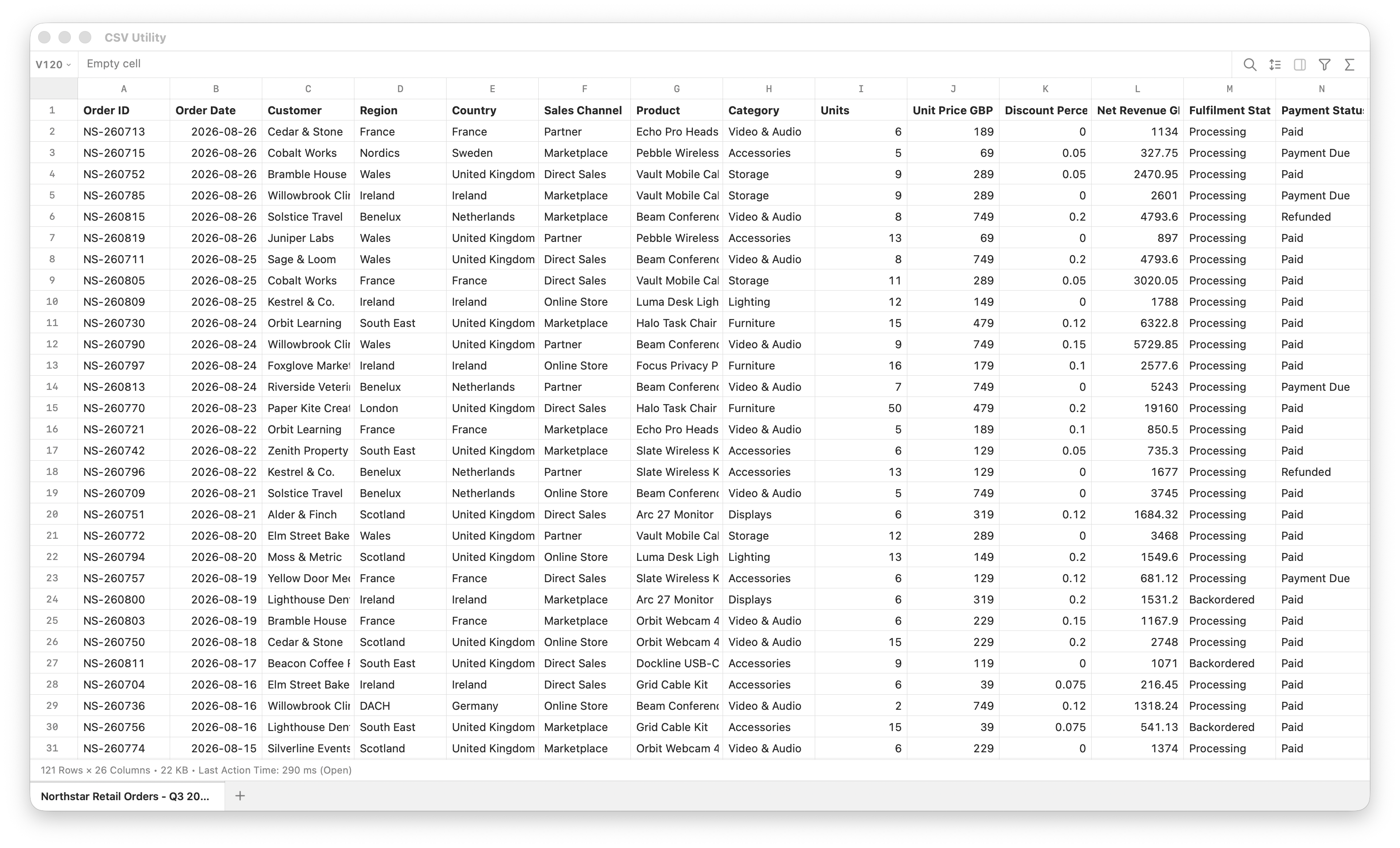
CSVUtility is a spreadsheet for people who actually live in CSV files, not a general-purpose workbook that happens to open them.
A familiar spreadsheet grid with freeze panes, fill handles, and a formula bar. It stays smooth from a hundred rows to multi-gigabyte files.
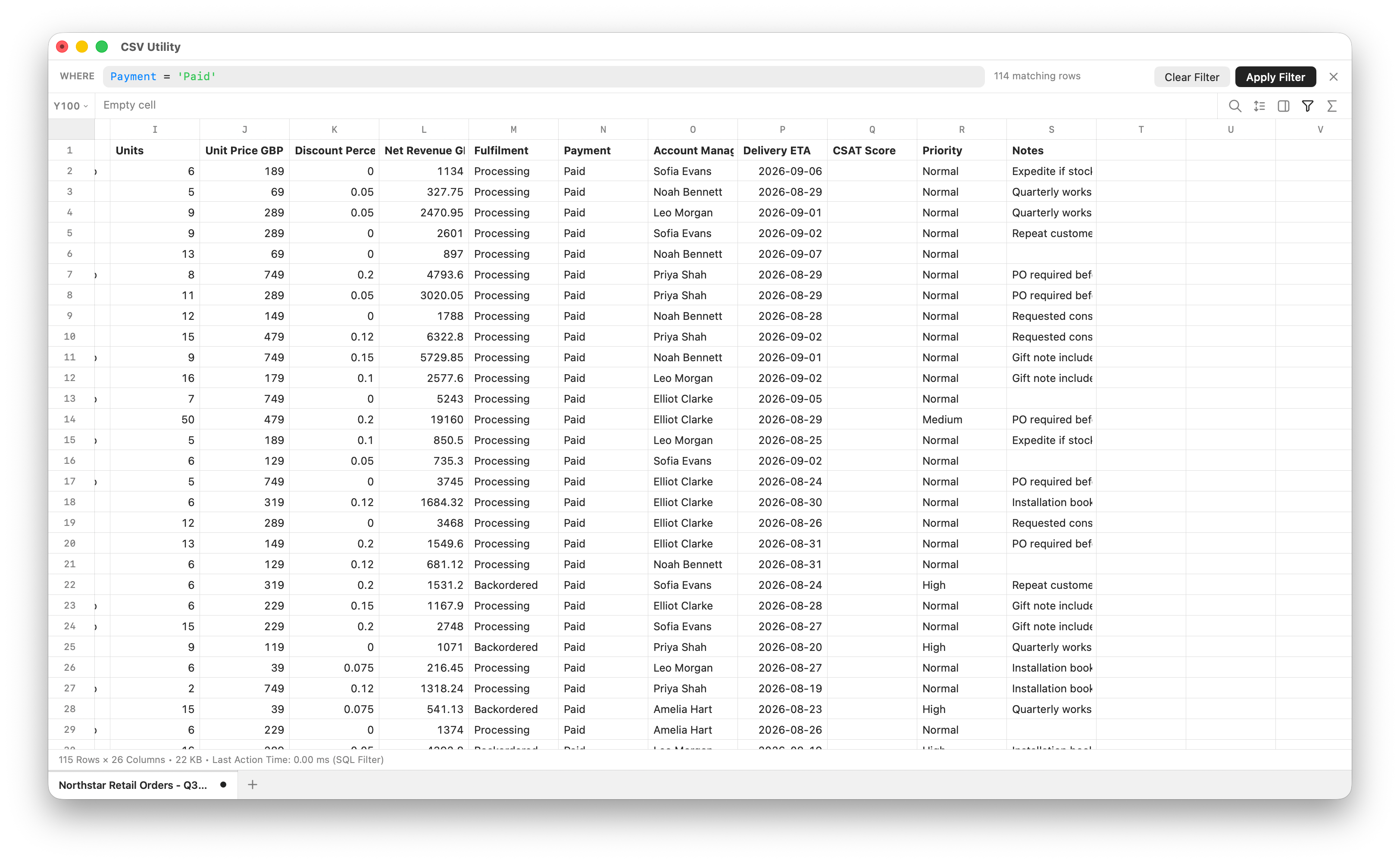
Filter with conditions like status = Paid, run spreadsheet functions, inspect a column, and compare unsaved changes side by side.
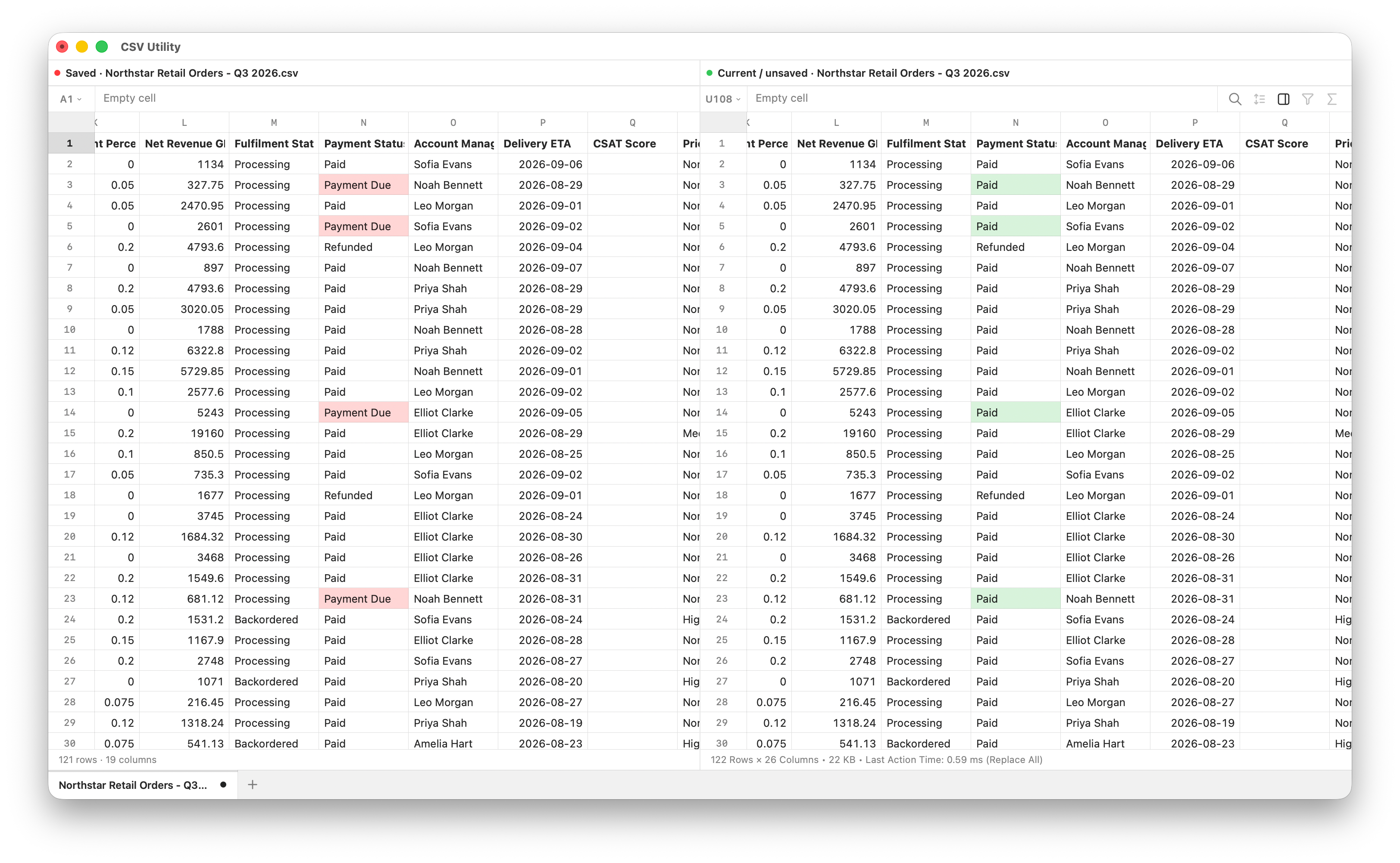
CSVUtility detects delimiter and encoding on open, then changes nothing you did not. Compare saved versus current before you write.
Every editing, cleaning, analysis, and export tool in CSVUtility, grouped the way you use them.
Reshape a CSV without manually rebuilding its columns.
Change a column heading directly from its context menu.
Insert a new column immediately to the left or right of the current selection.
Copy an entire column, including its header, into a new adjacent column.
Reorder columns without waiting for the whole file to reload.
Remove unwanted columns with undo support.
Split values using a chosen separator, automatically creating as many columns as required.
Join multiple selected columns into one, with a custom separator and heading.
Swap the rows and columns of a selected block.
Set an exact width or automatically fit columns to their contents.
Locate, isolate, and arrange the records that matter.
Search across the entire sheet or a selected range, with case-sensitive and whole-cell matching options.
Choose which distinct values should remain visible directly from a column.
Filter with conditions like status = Paid, using column names, AND / OR, NOT, LIKE, and blanks.
See colour as you type, and a clear error if a condition is not valid yet.
Sort a column alphabetically, numerically, chronologically, or by value length.
Build an ordered set of sorting rules with independent direction and blank-value handling.
Export only the rows currently visible through an active filter.
Turn inconsistent data into something dependable.
Remove unwanted spaces and line breaks surrounding selected values.
Replace inconsistent runs of spaces, tabs, and line breaks with clean single spaces.
Convert selected values to uppercase, lowercase, or title case.
Convert mixed line-ending styles into a consistent format.
Strip hidden control characters while preserving useful tabs and line breaks.
Transform selected cells by replacing text or adding content before or after each value.
Add, multiply, or round numeric cells across an entire selection.
Populate empty cells with a chosen value or carry the latest value down a column.
Collapse repeated values by keeping the first and clearing subsequent duplicates.
Safely stop long-running transformations before they modify the live sheet.
Find problems and understand a selection without leaving the grid.
Scan a CSV for malformed rows, unexpected column counts, unbalanced quotes, blank headings, and duplicate headings.
Jump directly between detected data-quality problems in the sheet.
See count, sum, average, minimum, and maximum values for the current selection.
Inspect distinct values, blanks, inferred value types, numeric ranges, and potential outliers.
Optionally use portable A1-style SUM, AVERAGE, COUNT, MIN, and MAX formulas.
Calculate formulas across very large file-backed ranges without blocking scrolling or selection.
See whether a formula is valid, malformed, cyclic, or references cells outside the sheet.
Work across files without constantly switching context.
Keep multiple CSV files open in a single window and quickly switch between them.
Right-click a tab to open a second sheet beside the current one, with an adjustable divider.
Search, sort, filter, diff, and use functions independently in either visible pane.
Compare unsaved changes against the saved file in a synchronized side-by-side view.
Clearly distinguish added, removed, changed, and unchanged cells.
Reopen files from the previous session when CSV Utility launches.
Keep control over how data enters and leaves the app.
Detect common delimiters and text encodings when opening a file.
Choose a preferred delimiter and encoding for ambiguous or legacy files.
Open and export comma-, tab-, semicolon-, and pipe-separated files.
Work with UTF-8, UTF-8 BOM, UTF-16, Windows-1252, and ISO Latin-1.
Export using Unix-style LF or Windows-style CRLF line endings.
Export the complete file, current filtered view, or selected cells.
Copy the current selection as formatted JSON.
Turn selected cells into a ready-to-paste Markdown table.
Generate SQL INSERT statements from selected data.
Open URLs stored in cells directly in the default browser.
Native macOS engineering for files that ordinary spreadsheet apps struggle with.
Use files much larger than your Mac’s free memory. CSVUtility reads what it needs as you go.
The grid paints the cells on screen, not millions of hidden ones.
Unchanged large files open much faster the second time.
Keep searching, filtering, and cleaning in the background so the grid stays usable.
Keep a copy on disk before overwriting a file, then open it from Finder if you need it back.
Automatically refresh clean documents when another application changes them on disk.
Reverse cell edits, transformations, sorting, filtering, and structural column operations.
One download for both kinds of Mac.
Get new versions in the app. Updates are signed and checked by Apple.
Configure the workspace around the way you work.
Follow the macOS appearance or choose a permanent light or dark theme.
Choose the colour used for selections, active tools, and primary actions.
Adjust cell text size and default row height.
Choose how many rows and columns newly opened sheets display, with defaults of 100 rows and 26 columns.
Find preferences quickly from one continuous settings screen.
Yes. CSVUtility is a Mac CSV editor for multi-gigabyte files. It reads the file from disk as you scroll instead of loading every cell into memory. In a 1 GB test on a 14-inch MacBook Pro (M1 Pro, 16 GB), it opened 12.49 million rows and 99.9 million cells in 2.03 seconds.
Google Sheets allows up to 10 million cells. Excel worksheets allow 1,048,576 rows. The 1 GB CSVUtility benchmark contained 99.9 million cells and 12.49 million rows, so almost 10 times the Sheets cell ceiling and 11.9 times Excel worksheet rows. That Excel comparison is the worksheet grid, not Power Query or the Data Model.
Yes. Choose Filter from the Edit menu and type a condition using your column names, like status = Paid. You can combine conditions with AND, OR, and NOT, and use LIKE for partial matches. Mistakes show as you type. A two-condition filter over 12.49 million rows took 14.58 seconds in the 1 GB test.
No. CSVUtility detects delimiter, encoding, and quoting on open, then keeps your data as it is. Leading zeros stay intact, dates are not rewritten, and you choose delimiter, encoding, and line endings when you export.
Yes. Download CSVUtility for Mac and start editing. No account required. Updates install in the app. It needs macOS 14 or later.
CSVUtility is a CSV editor, not a general spreadsheet. It keeps your text as you saved it, opens files far larger than a worksheet can hold, and includes tools made for CSV work: row filters, a saved-versus-current compare, column split and combine, and checks for broken rows.
No. CSVUtility is a Mac app for Apple silicon and Intel. It is checked by Apple, and it can restore a previous copy of a file you overwrite.
Free to start. See the 1 GB benchmarks for measured open, search, filter, and export times.
 Download for MacOS